Blog/Article
B1G IPTV on Android Phones and Tablets: Compatibility, Features and Setup Guide
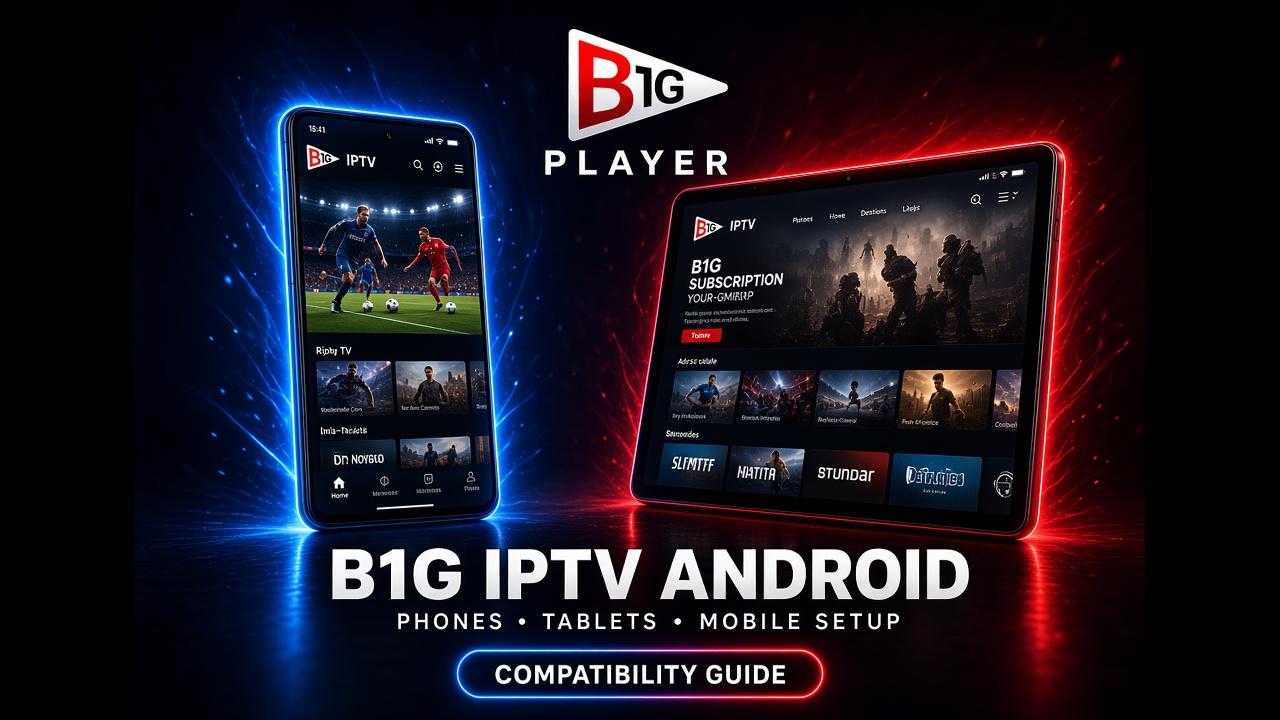
Yes, B1G IPTV is designed to work on compatible Android smartphones and tablets through the B1G Player application. You can use an Android device to access your account, browse available content and stream on a mobile screen without needing a Smart TV or Firestick.
Whether you use a Samsung Galaxy, Google Pixel, Xiaomi, Redmi, OnePlus or another Android device, the important thing is to check that your Android version supports the available B1G Player application.
With a compatible device, internet connection and active B1G IPTV account, you can set up the application and start using its available features.
This guide explains B1G IPTV compatibility with Android phones and tablets, how to install B1G Player, how to connect your account and how to fix common mobile streaming problems.
What Is B1G Player for Android?
B1G Player is the application used to access your B1G IPTV account on supported devices. It provides an interface for browsing and watching the content available through your subscription.
The Android version is intended for compatible Android smartphones and tablets. Depending on your account and application version, you may be able to access:
- •Live TV channels
- •Sports and entertainment content
- •Movies and TV series
- •Available HD and Full HD streams
- •Selected 4K content where supported
- •Electronic Programme Guide (EPG)
- •Catch-up content where available
The availability of these features depends on your subscription, the individual content source, device compatibility and the application version.
It is also important to understand the difference between the player and the service. B1G Player is the application, while your B1G IPTV subscription provides the account access and available content.
Which Android Phones and Tablets Support B1G IPTV?
B1G IPTV is intended for compatible Android smartphones and tablets. However, not every device has the same hardware, operating system or application compatibility.
Here are examples of Android device brands you may use, provided your particular model supports the required application.
| Android device brand | Device examples | Compatibility consideration |
|---|---|---|
| Samsung | Galaxy S series, Galaxy A series, Galaxy Tab | Check Android version and app support |
| Pixel phones and tablets | Check application availability and Android version | |
| Xiaomi | Xiaomi and Redmi phones | Check device software and app compatibility |
| OnePlus | OnePlus smartphones | Check supported Android version |
| Motorola | Moto G and Edge series | Check available storage and app compatibility |
| Lenovo | Lenovo Android tablets | Check application and hardware support |
| Oppo | Oppo smartphones | Check software version and installation support |
Your device does not need to be from a particular brand. What matters is whether it supports the correct Android application.
How to Install B1G IPTV Player on Android Phone
Setting up B1G IPTV on an Android phone is straightforward when you have the correct application and account details.
Follow these steps to get started.
Step 1: Check Your Android Phone
Before downloading B1G Player, check your phone's Android version and available storage.
Open your phone settings and find the About Phone or Software Information section. The exact menu name depends on your manufacturer.
Also make sure your phone has a stable internet connection. Wi-Fi is useful for downloading the application and testing your account.
Step 2: Get the Correct B1G Player Application
Use the current B1G Player installation instructions to identify the correct Android application for your device.
You can visit the B1G Player installation guide to check the available setup route.
If an Android APK is required, download it only from the verified source supplied through the installation guide or support team.
Do not install an APK simply because its filename contains B1G Player. Unverified files may be outdated, modified or incompatible with your phone.
Step 3: Install B1G Player on Your Android Phone
If you have downloaded a compatible APK:
- •Open your phone's Downloads folder.
- •Find the downloaded B1G Player APK.
- •Tap the file to begin installation.
- •Follow the Android installation instructions.
- •Allow the installation permission for the selected source if your device requests it.
- •Wait for the installation to finish.
- •Open B1G Player.
Android menu names and security options can vary by manufacturer and software version. Only allow installation from a source you trust.
Step 4: Enter Your B1G IPTV Login Details
After opening B1G Player, you will need to connect your account.
Depending on the application version and account configuration, you may be asked for the following information:
| Login information | Purpose |
|---|---|
| Username | Identifies your account |
| Password | Authenticates your account |
| Server URL | Connects the player to the supplied service address |
| Profile name | Helps identify your saved account |
Enter the details exactly as provided by your B1G IPTV provider.
Check for typing mistakes, unnecessary spaces and missing characters. If the application offers a different supported login method, follow the instructions supplied for your account.
Step 5: Load Your Available Content
After submitting your details, allow B1G Player to connect and load your available content.
Depending on your account, you may see categories for live TV, movies, series and programme guide information.
Wait for the loading process to finish. Then open a few categories and test playback.
Your B1G IPTV Android setup is complete when the application accepts your account and the available content loads correctly.
How to Use B1G IPTV on an Android Tablet
The setup process on an Android tablet is similar to the process on a smartphone.
A tablet provides a larger display, which can make browsing categories and watching content more comfortable.
Follow these steps:
- •Connect your Android tablet to Wi-Fi.
- •Check its Android version and available storage.
- •Obtain the compatible B1G Player application.
- •Install the application using the verified instructions.
- •Open B1G Player.
- •Enter your B1G IPTV account details.
- •Allow the available content to load.
- •Test playback and navigation.
You can use supported Android tablets from brands such as Samsung, Lenovo and Xiaomi, provided the particular model meets the application's requirements.
If you already use B1G Player on your phone, you may be able to configure the same subscription on your tablet. However, simultaneous viewing depends on your subscription's connection limit.
B1G IPTV on Android Phone vs Android Tablet
Both device types can provide access to B1G IPTV, but they offer different viewing experiences.
| Feature | Android phone | Android tablet |
|---|---|---|
| Portability | Easy to carry | Portable but larger |
| Display | Smaller screen | Larger screen |
| Installation | Android-compatible app | Android-compatible app |
| Internet | Wi-Fi or mobile data | Wi-Fi or mobile data, depending on model |
| Browsing | Suitable for quick navigation | More screen space for browsing |
| Viewing experience | Convenient for travel | More comfortable for longer viewing |
Choose the device that suits your viewing habits. A phone is convenient when travelling, while a tablet offers a larger display for watching at home.
Main Features of B1G Player on Android
B1G Player provides a central interface for accessing your available B1G IPTV content. The exact features depend on your application version and subscription.
1. Live TV Access
You can browse the live TV categories available through your account and select a channel to watch.
The available channels and playback quality depend on your subscription and the individual stream.
2. Movies and TV Series
Where included in your account, the application may provide access to movies and television series.
You can browse the available categories and select a title to play.
3. Electronic Programme Guide
The EPG helps you view programme information for supported channels.
If the guide is available with your account, you can use it to check programme schedules and identify what is currently showing.
4. Mobile-Friendly Viewing
Using B1G Player on Android gives you a portable way to access your account.
You can watch on a compatible phone or tablet without connecting an external television device.
5. Supported Streaming Quality
Available streams may include SD, HD, Full HD and selected 4K content.
However, the actual quality depends on the source, subscription, internet connection, device display and application support. A 4K label does not guarantee that every stream will play in 4K on your phone.
Can You Use B1G IPTV on Android Without Wi-Fi?
Yes, you may be able to use B1G IPTV through mobile data if your Android phone or tablet has an active data connection.
However, streaming video can consume a significant amount of mobile data, especially when watching high-resolution content.
For example, higher-quality streams generally use more data than standard-definition streams.
If you plan to watch for a long time, consider using Wi-Fi or checking your mobile data allowance first.
Also remember that mobile data performance depends on network coverage, signal strength and congestion.
Can You Use One B1G IPTV Subscription on Your Phone and Tablet?
You may be able to configure the same B1G IPTV account on more than one compatible device, but this does not automatically mean you can watch on all devices simultaneously.
The number of permitted active connections depends on your subscription.
For example, if your package includes one active connection, using the account on a phone and tablet at the same time may exceed that limit.
Before adding another device, check your subscription details and ask support if you are unsure about the connection rules.
Common B1G IPTV Problems on Android Phones and Tablets
If B1G Player does not work correctly on your Android device, the problem may involve the application, account, internet connection or device compatibility.
Here are some common issues and their possible solutions.
B1G Player Is Not Installing on Android
If the APK does not install, check the following:
- •Confirm that the APK is intended for your Android device.
- •Check whether your phone has enough storage.
- •Make sure the download completed successfully.
- •Review the installation permission for the source.
- •Restart your phone and try again.
If the problem continues, obtain the correct installation instructions from support instead of downloading random APK files.
B1G IPTV Login Failed on Android
A login error may occur when your username, password or server address is incorrect.
Re-enter your account details carefully. Check that the subscription is active and that you are using the correct login method.
If everything appears correct but the error continues, contact your provider to verify your account.
B1G IPTV Is Buffering on Mobile
Buffering can happen because of weak Wi-Fi, poor mobile coverage, network congestion or stream-related problems.
Try these steps:
- •Check your internet speed and signal.
- •Switch between Wi-Fi and mobile data to test the connection.
- •Close unnecessary background applications.
- •Restart B1G Player.
- •Test another available channel.
- •Restart your phone if the problem continues.
If only one channel buffers, the problem may be related to that particular stream rather than your Android device.
B1G Player Opens but Channels Are Missing
If the application opens but your channel categories are empty, refresh the playlist if the player provides that option.
Check that your account details are correct and that your subscription is active.
If the content still does not appear, ask your provider to check your account and playlist.
B1G IPTV Has No Sound on Android
If a video plays without sound, check your phone's media volume and make sure the device is not muted.
Try another available channel or title. If the issue happens with only one stream, it may be related to that source.
You can also restart the application and check for an available update.
B1G Player Keeps Crashing
An outdated application, limited storage or device compatibility issue may cause crashes.
Try clearing the application's cache through Android settings, restarting your phone and checking for an updated version from the verified source.
If the problem remains, contact support with your phone model, Android version and a description of the error.
Tips for a Better B1G IPTV Experience on Android
A few simple steps can help you get a more reliable viewing experience.
- •Use a stable Wi-Fi connection when possible.
- •Keep your Android operating system updated.
- •Use the correct and current B1G Player application.
- •Keep sufficient free storage on your phone or tablet.
- •Close unnecessary background applications.
- •Avoid running several high-bandwidth activities at the same time.
- •Test different streams if one channel does not play correctly.
- •Protect your account username and password.
These steps can help reduce common device and network problems, although they cannot guarantee that every stream will always be available.
Get Started with B1G IPTV on Your Android Device
If you want to use B1G IPTV on your Android phone or tablet, first confirm that your device supports the current B1G Player application.
Visit the B1G Player installation guide for the latest setup instructions. Once you have the correct application, connect your account using the supplied login details and test the available content.
If you are considering a new subscription, visit the B1G IPTV UK page to review the available packages and account information.
You can also ask about a B1G IPTV free trial, where available, to check the application and playback on your own Android device before choosing a longer plan.
Frequently Asked Questions
Yes. B1G IPTV is designed for compatible Android smartphones through the B1G Player application. Check your Android version and the current app requirements before installing it.
Yes. Compatible Android tablets can use B1G Player to access an active B1G IPTV account. The installation and login process is similar to that on Android phones.
Check the current B1G Player installation guide for the correct application and download method. Use a verified source and follow your device's installation instructions.
An Android APK installation route is provided for compatible devices. Always confirm the current file and installation instructions through the verified B1G Player source before downloading.
Yes, provided your device has a working mobile data connection. However, video streaming can use substantial data, so check your mobile allowance before watching for extended periods.
You may be able to configure your account on multiple devices, but simultaneous viewing depends on your subscription's active connection limit.
Compatible Samsung Galaxy phones running a supported Android version can use the Android application. Check the requirements for your specific model before installing.
Possible reasons include incorrect login details, an outdated application, insufficient storage, an unstable connection or a service issue. Check these areas before reinstalling the application.
Android phones, tablets and compatible Android TV devices may support the B1G Player application. However, check your subscription's connection limit before streaming on multiple devices simultaneously.
Installing B1G Player does not automatically provide an active subscription. You need valid account access to watch subscription-based content. Ask the provider whether a free trial is currently available.