
Blog/Article
B1G Player for Firestick: How to Download & Set Up B1G IPTV on Firestick
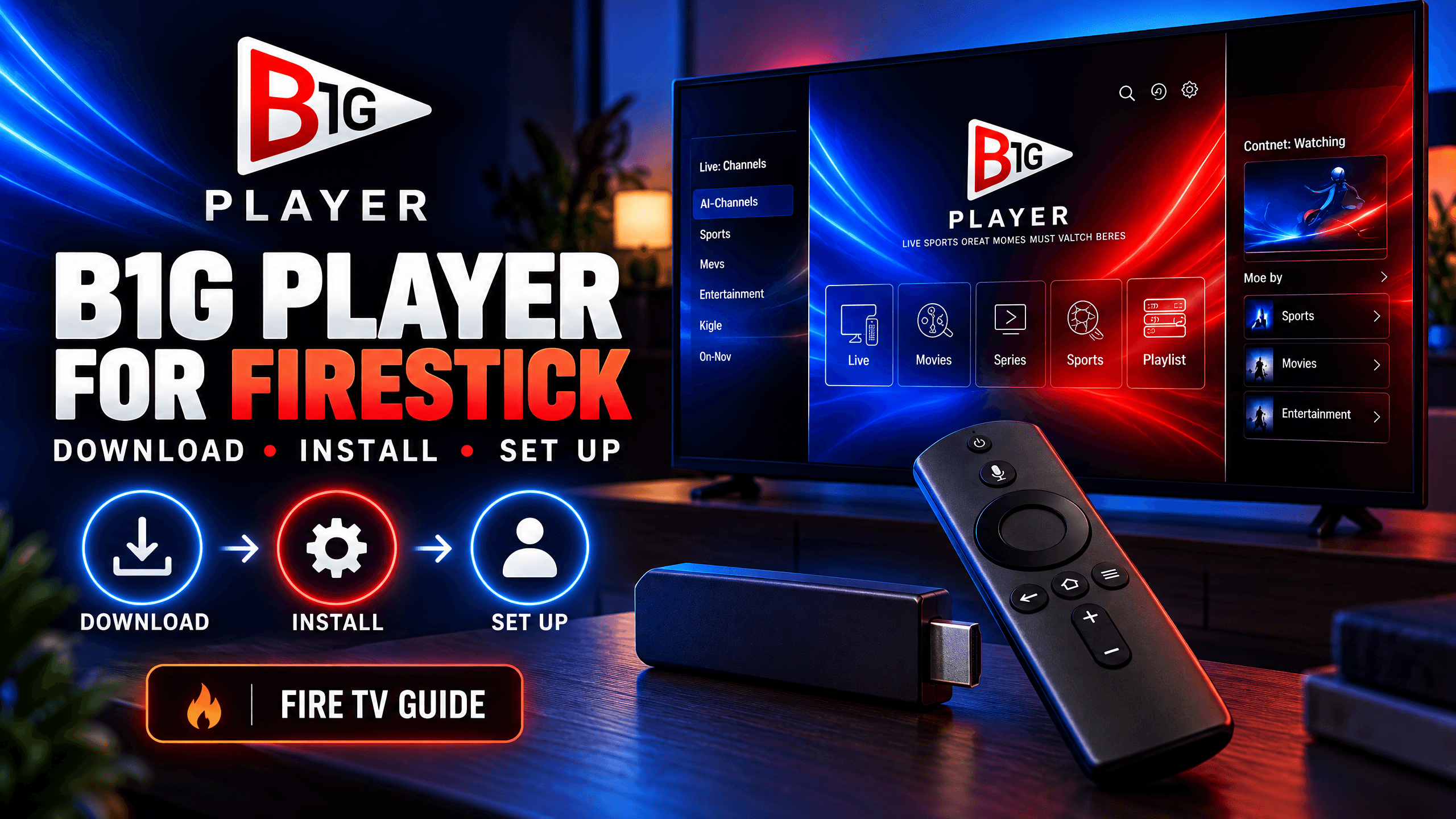
If you want to install B1G Player on Firestick, you need a compatible Fire TV device, a stable internet connection, the correct installation file, and valid login details. Once installed, you can open B1G Player, enter your B1G IPTV account information, and load your available channels and content.
The exact installation process depends on your Firestick model and Fire OS version. Some devices allow third-party app installation, while others may have restrictions.
This guide explains how to download B1G IPTV on Firestick, install the app, complete the login process, and solve common problems if the app does not work as expected.
What You Need Before Installing B1G Player on Firestick
Before you begin the B1G IPTV Firestick setup, prepare the following:
- •Compatible Firestick: Your device must support the installation method you plan to use.
- •Internet connection: Connect your Firestick to a reliable Wi-Fi network.
- •Downloader app: You may need Downloader to install an APK from a trusted source.
- •B1G Player installation file: Use the current installation instructions provided on the B1G Player installation guide.
- •Active B1G IPTV account: Keep your username, password, and server URL ready if your account uses these details.
Check that your Firestick has enough free storage before downloading the application. If you already have an older version of B1G Player installed, check whether it needs an update before starting again.
How to Download or Install B1G IPTV Player on Firestick
Follow these steps to download B1G Player on a compatible Firestick.
01Connect Your Firestick to the Internet
Turn on your television and open the Fire TV home screen. Go to your network settings and confirm that your Firestick is connected to Wi-Fi.
If the connection is unstable, restart your router and reconnect the device before installing B1G IPTV. A stable connection helps prevent incomplete downloads and installation errors.
02Search for the Downloader App
From the Firestick home screen:
- •Open Find or Search.
- •Type Downloader into the search box.
- •Select the Downloader app from the results.
- •Choose Get or Download to install it.
- •Open the app and follow any on-screen permission prompts.
Downloader is commonly used to install compatible applications that are not available through the Amazon Appstore. Only use it to access a source you trust.
03Allow Installation from the Selected Source
To install B1G Player using an APK, your Firestick may need permission to install apps from outside the Amazon Appstore.
On supported models, look under: Settings → My Fire TV → Developer Options → Install Unknown Apps. Select Downloader and enable the permission if your device offers this option.
On some older Fire TV versions, the setting may be labelled Apps from Unknown Sources. If Developer Options is missing, check whether your device provides a way to enable developer settings. Menu names and available options vary by model and software version.
Do not change unrelated security settings. If your device does not support this installation method, use an alternative supported by your Fire TV model.
04Download the B1G Player APK
Open Downloader and enter the current download address or installation code provided on the B1G Player installation page.
The published installation guide currently provides Downloader code 4172090. Verify the code and destination on the B1G Player installation guide before using it, as download links and codes can change.
After entering the verified details:
- •Start the download.
- •Wait for the APK file to finish downloading.
- •Check that the destination identifies the expected B1G Player application.
- •Continue only if the source appears trustworthy.
Avoid APK files from unknown websites, random file-sharing links, or unofficial mirrors. An unfamiliar APK may be outdated, modified, or unsafe.
05Install B1G Player on Firestick
When the download finishes, the Fire TV installation screen may open automatically.
- •Select Install.
- •Wait for the installation to finish.
- •Choose Open to launch B1G Player, or return to your apps.
- •Confirm that the application opens correctly.
If the installation fails, check the available storage, source permissions, device compatibility, and whether an older version is already installed.
Once the app is working, you can remove the downloaded APK file to free up storage. Do not uninstall the application itself.
How to Set Up B1G IPTV Player on Firestick
Installing B1G Player is only the first part of the process. You must also connect the app to your active B1G IPTV account.
01Open B1G Player
Go to your Firestick apps list and open B1G Player. If you cannot find it on the home screen, select the option to view all installed applications. Allow the app to complete any initial loading or update process before entering your account information.02Enter Your B1G IPTV Login Details
The login screen depends on the version of the application and the account method supported.
If your account uses Xtream Codes-style login, you may need:
03Let Your Content Load
After signing in, wait for the application to load your available content. Depending on the service and player, this may include live TV categories, movies, series, and an electronic programme guide (EPG). The loading time depends on your connection, device performance, and the amount of data being retrieved.04Test the Setup
Before using the application regularly, test several available channels and, where included in your account, a movie or series.
Check that:
- •The app opens without errors.
- •Your account is accepted.
- •Channel categories appear correctly.
- •Playback starts and continues smoothly.
- •Programme guide information appears where supported.
If something is missing, troubleshoot the specific issue rather than reinstalling the application immediately.
| Login field | What to enter |
|---|---|
| Name | A label of your choice, such as Living Room |
| Username | The username supplied with your account |
| Password | The password supplied with your account |
| Server URL | The complete server address supplied by your provider |
Enter the details exactly as provided. Check for extra spaces, missing characters, and incorrect punctuation before submitting them.
If your B1G IPTV account uses a different login method, follow the instructions supplied for that account. Do not assume that every player version supports the same options.
How to Fix B1G Player Not Working on Firestick
If B1G Player does not open or B1G IPTV channels fail to load, work through these checks in order.
B1G Player Will Not Download
If the APK does not download, confirm that your internet connection works and that you entered the correct installation address or code.
Reopen the official installation guide and verify the current download details. If Downloader cannot access the destination, the link may be unavailable or your network may be blocking access.
B1G Player Shows an Installation Error
An installation error can occur because of insufficient storage, an incompatible APK, missing permissions, or a conflict with an existing app version.
Try these steps:
- •Check the available storage on your Firestick.
- •Confirm that the APK is intended for a compatible device.
- •Review the installation permission for Downloader.
- •Restart your Firestick and try again.
- •Contact support if the error continues.
Do not repeatedly install APK files from different websites to find one that works.
B1G IPTV Login Failed
If B1G Player rejects your credentials, carefully check your username, password, and server URL.
Make sure you are using the details for the correct account and that your subscription or trial is active. If the information is correct but login still fails, ask your provider to verify the account and server address.
B1G IPTV Channels Are Not Loading
If you can log in but channels do not load, check your internet connection first. Restart the app and allow the channel list to refresh.
Test more than one channel. If every channel fails across multiple attempts, the issue may involve the account, server, or service rather than the Firestick itself. Contact your provider before changing server details. See also our B1G IPTV troubleshooting guide.
B1G Player Keeps Buffering
Buffering can result from weak Wi-Fi, network congestion, device limitations, or problems with an individual stream.
Try moving your Firestick closer to the router, restarting the router, and pausing other heavy internet activity. You can also restart the Firestick and test another available stream.
A faster internet package will not necessarily solve every buffering problem, particularly if the source or service is experiencing an issue.
B1G Player Is Missing from Your Apps
If B1G Player installed successfully but is not visible on your home screen, open your full applications list and look for it there.
If it is missing from the full list, check whether the installation completed successfully. You may need to reinstall it from the verified source.
Is B1G Player Compatible with Every Firestick?
Not necessarily. Compatibility depends on the Firestick model, Fire OS version, application version, and available installation options.
Before installing B1G IPTV, confirm that your particular device supports the required app and installation method. If your Fire TV does not allow the necessary APK installation, do not try to bypass device restrictions using untrusted tools.
You can also check the official B1G Player installation guide for updated setup instructions.
B1G Player vs B1G IPTV: What Is the Difference?
The terms are related, but they do not always mean the same thing.
B1G Player
The application used to access an account through a compatible device.
B1G IPTV
The IPTV service or account you use with a compatible player.
B1G IPTV APK
The Android application installation file, where the relevant version is supplied as an APK.
B1G Player on Firestick
The app installed on a compatible Fire TV device and configured with supported account details.
Installing the player does not automatically provide an active subscription. You may need separate account details to access the service.
Get Help with Your B1G IPTV Firestick Setup
If you have followed the steps but cannot install the app, log in, or load your content, check the current setup instructions before making further changes.
Visit the B1G IPTV UK page to review the available service information. If you already have an account, contact your provider for help with login details, compatibility, or server issues.
If you are considering a subscription, confirm that the service supports your Firestick model and test the setup where a trial is available before choosing a longer plan.
Frequently Asked Questions
Install Downloader if it is available for your device, verify the current B1G Player download address or code in the installation guide, and follow the Fire TV installation prompts. Then open the app and enter your supported account details.
First, install a compatible B1G Player application using a trusted installation source. Next, open the player, enter your active B1G IPTV login details, and wait for the available content to load.
Yes, if your Fire TV model supports the required installation method and the application is available from a trusted source. Verify the download address or code before using it.
The cost of downloading the application and the cost of accessing an IPTV service are separate matters. Check the current app terms and your provider's subscription details to confirm any charges.
Common causes include an incompatible app version, incorrect login details, an inactive account, weak internet, or a server issue. Check the error message and test the connection before reinstalling the app.
Compatibility depends on the exact device and application version. Check the supported models and installation options before downloading the APK.
You need valid access details if you want to watch subscription-based content through the service. Installing the player alone does not activate an IPTV account.
Check your Wi-Fi signal, restart the router and Firestick, close unnecessary apps, and test another available channel. If the problem continues across channels, ask your provider to check the service or account.
Final Thoughts
Installing B1G Player on Firestick involves downloading the correct application, completing the installation, and entering valid B1G IPTV account details. The process is straightforward when your device supports the required installation method, and you use a verified download source.
If you experience problems, check compatibility, login details, internet access, and the service status before reinstalling the app. Following these steps can help you identify the cause and get your B1G IPTV Firestick setup working correctly.